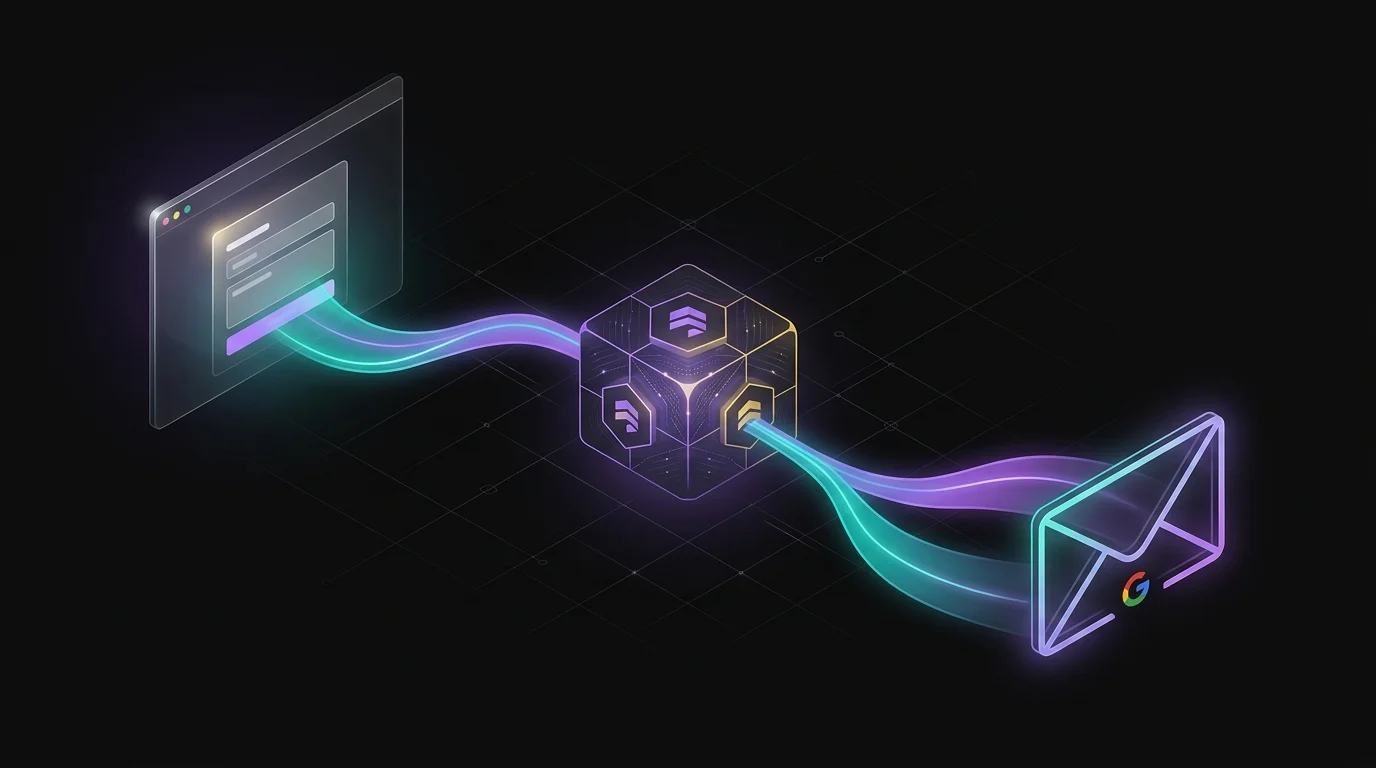
Every modern Australian SME we work with eventually asks the same question: "Can a visitor fill out a form on our site, get an instant reply, and route a copy to our inbox — without us paying for a separate email platform?" The answer is yes, and the cleanest stack is Firebase plus Google Workspace. The not-so-clean part is the chain of small misconfigurations that quietly break it.
This guide documents the exact setup we used to ship a public diagnosis form on a Firebase-hosted static site, save submissions to Firestore, and email two copies via Google Workspace — one to the visitor, one to the business owner — with the visible FROM address being a Google Group. Everything below is what actually worked, including the errors we hit on the way.
RxAI Insight
The hardest part of a Firebase email pipeline is not the code — it is the four invisible layers (SMTP Relay, app password, DNS authentication, and Group posting policy) that all have to be correct at the same time before a single message goes through.
What Does This Email Pipeline Actually Do?
A visitor fills out a form on a Firebase-hosted page. The browser writes two kinds of documents to Cloud Firestore: one submissions document with the form answers and a computed score, and two mail documents — one for the visitor and one for the business owner. The Trigger Email from Firestore extension watches the mail collection, hands each document to Google's SMTP Relay, and the relay sends the message FROM a Google Group address on your domain.
The stack in one breath:
- Firebase Hosting serves the static site
- Cloud Firestore (named database) stores submissions and email queue documents
- Firebase Extensions — Trigger Email from Firestore — does the actual sending
- Google Workspace SMTP Relay authenticates the outbound mail
- A Google Group is the visible FROM address so replies stay routed
- DNS publishes SPF, DKIM and DMARC for the sending domain
Why Send from a Google Workspace Group?
Most businesses want their public contact address — for example hello@yourdomain.com — to be a Group, not a personal mailbox. Inbound mail to a Group is distributed to whichever team members need it, and replies always come back to a single address that the team can rotate. If those Groups do not exist yet, our Google Workspace email setup guide for founders builds one per department on a single paid licence. The problem: a Google Group has no mailbox of its own and cannot hold SMTP credentials.
You have two practical options for sending as a Group:
- SMTP Relay — authenticates as a real Workspace user but is allowed to send AS any address in the same domain, including a Group.
- "Send mail as" alias on a real user — works for aliases and alternates, but not for Group addresses.
For Group senders, Option 1 is the only one that actually works. The rest of this guide is built on it.
How Do You Set Up Firebase Hosting and Firestore?
The Trigger Email extension uses Cloud Functions v2, which require Firebase's pay-as-you-go Blaze plan. Upgrading is mandatory before any of this works. Once you are on Blaze, your firebase.json should look like this — note the firestore.database field, which is required because we are using a named Firestore database, not (default):
{
  "hosting": {
    "public": "dist",
    "ignore": ["firebase.json", "**/.*", "**/node_modules/**"],
    "rewrites": [{ "source": "**", "destination": "/index.html" }]
  },
  "firestore": {
    "database": "your-named-db",
    "rules": "firestore.rules"
  }
}
Forgetting to declare the named database is the single most common cause of "the form submits but no email goes out" — the extension is watching the named DB while the browser is silently writing to (default).
How Does the Client-Side Form Code Work?
The browser uses the Firebase JavaScript SDK to write directly to Firestore — no backend required. Two collections are written per submission:
submissions/{doc}— the raw answers and computed scoremail/{doc}— one document per outbound email, in the format the Trigger Email extension expects
The shape of the form handler looks like this:
import { initializeApp } from "https://www.gstatic.com/firebasejs/10.13.2/firebase-app.js";
import { getFirestore, collection, addDoc, serverTimestamp }
  from "https://www.gstatic.com/firebasejs/10.13.2/firebase-firestore.js";

const app = initializeApp(firebaseConfig);
const db  = getFirestore(app, "your-named-db"); // named DB

const MAIL_FROM     = "RxAI <hello@yourdomain.com>";
const MAIL_REPLY_TO = "hello@yourdomain.com";
const OWNER_EMAIL   = "owner@yourdomain.com";

document.getElementById("diagnose-form").addEventListener("submit", async (e) => {
  e.preventDefault();

  await addDoc(collection(db, "submissions"), {
    name, email, biz, answers, score, band,
    createdAt: serverTimestamp(),
    page: location.href
  });

  await addDoc(collection(db, "mail"), {
    from: MAIL_FROM,
    replyTo: MAIL_REPLY_TO,
    to: [email],
    message: { subject: "Your reading", text: "...", html: "..." }
  });

  await addDoc(collection(db, "mail"), {
    from: MAIL_FROM,
    replyTo: MAIL_REPLY_TO,
    to: [OWNER_EMAIL],
    message: { subject: "New submission", text: "...", html: "..." }
  });
});
Two details worth pinning down. The named database is the second argument to getFirestore(app, "your-named-db"); omitting it silently writes to (default). And setting from and replyTo per document overrides the extension's "Default FROM" setting, which is only a fallback.
How Do You Write Safe Firestore Rules for a Public Form?
A public form lets anyone on the internet write to your database. The right shape is create-only on both collections, with light validation, and deny everything else:
rules_version = '2';
service cloud.firestore {
  match /databases/{database}/documents {

    match /submissions/{doc} {
      allow create: if request.resource.data.email is string
                    && request.resource.data.email.matches('.+@.+\\..+')
                    && request.resource.data.score is number
                    && request.resource.data.score >= 0
                    && request.resource.data.score <= 10;
      allow read, update, delete: if false;
    }

    match /mail/{doc} {
      allow create: if request.resource.data.to is list
                    && request.resource.data.to.size() >= 1
                    && request.resource.data.message is map
                    && request.resource.data.message.subject is string;
      allow read, update, delete: if false;
    }

    match /{document=**} {
      allow read, write: if false;
    }
  }
}
Without these rules in place you end up with one of two failure modes: a locked database that rejects the form, or an open database where any visitor can read every submission. Create-only with field validation is the right middle ground for a public diagnosis form.
How Do You Configure the Workspace SMTP Relay?
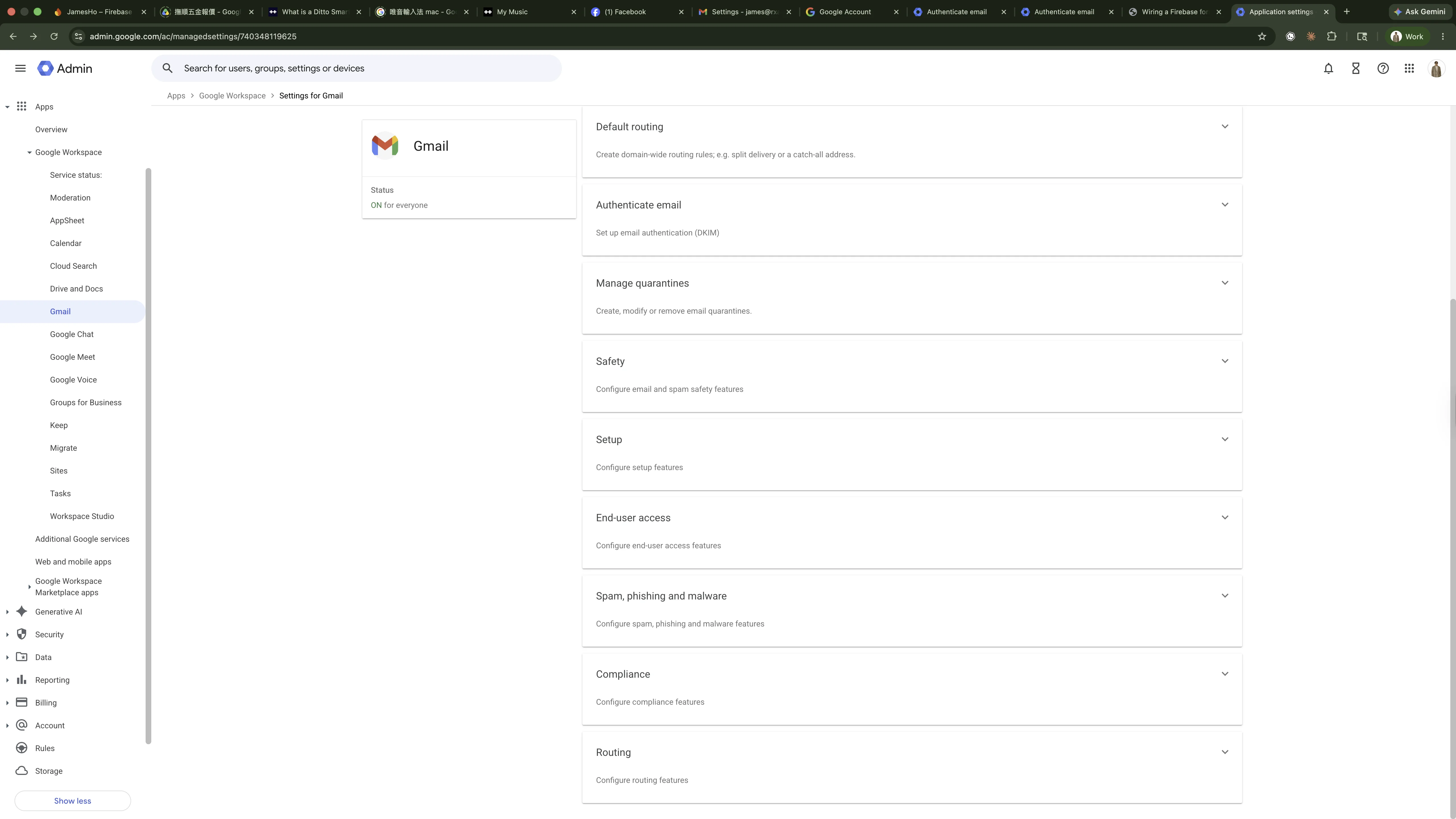
This is the authentication path that lets you send mail FROM any address in your domain (including a Group address) using a real Workspace user's credentials. In the Admin Console, navigate to Apps → Google Workspace → Gmail → Routing:
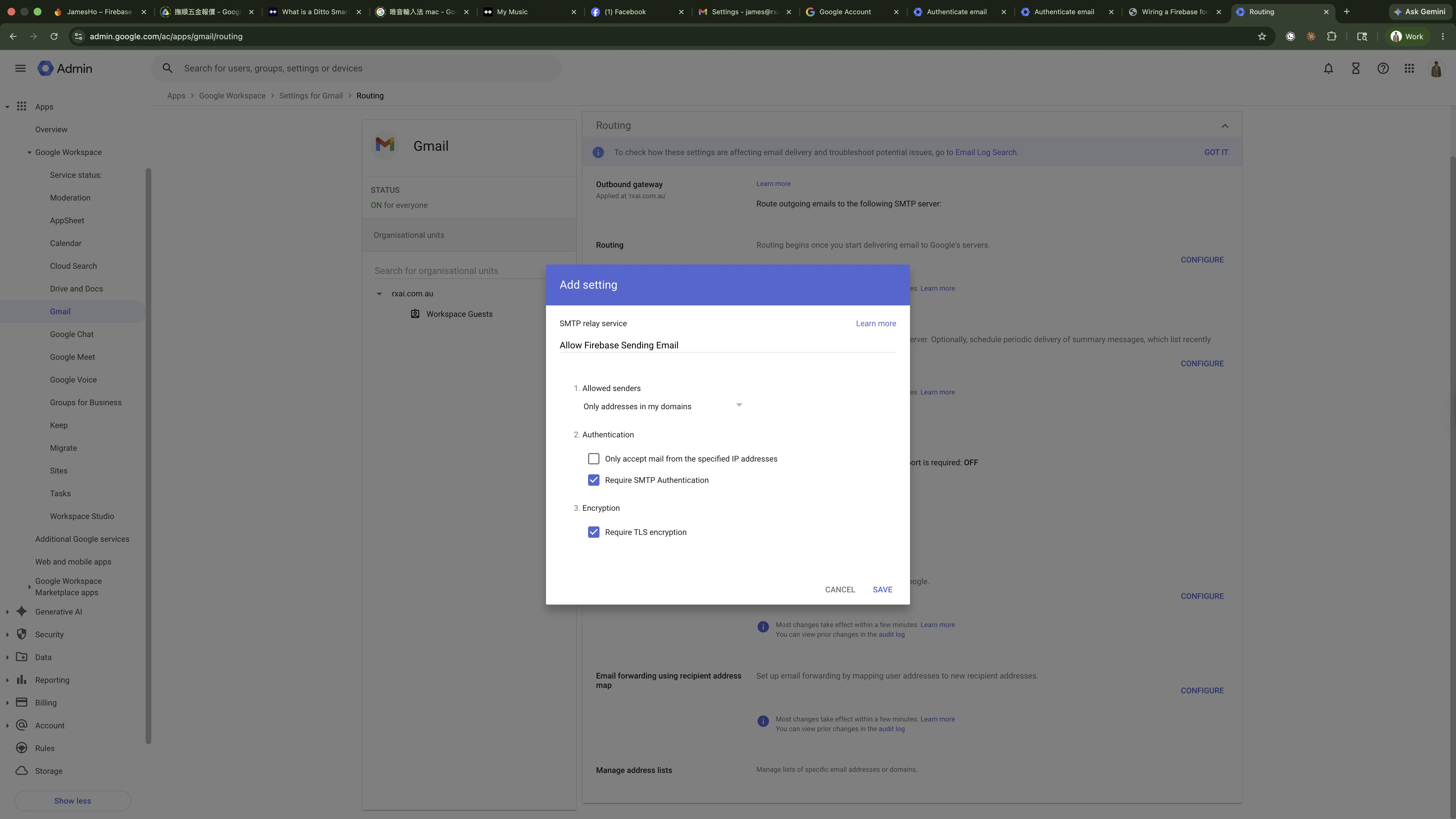
Scroll to SMTP relay service and click Add another rule:
Then configure the rule inside the popup with these settings:
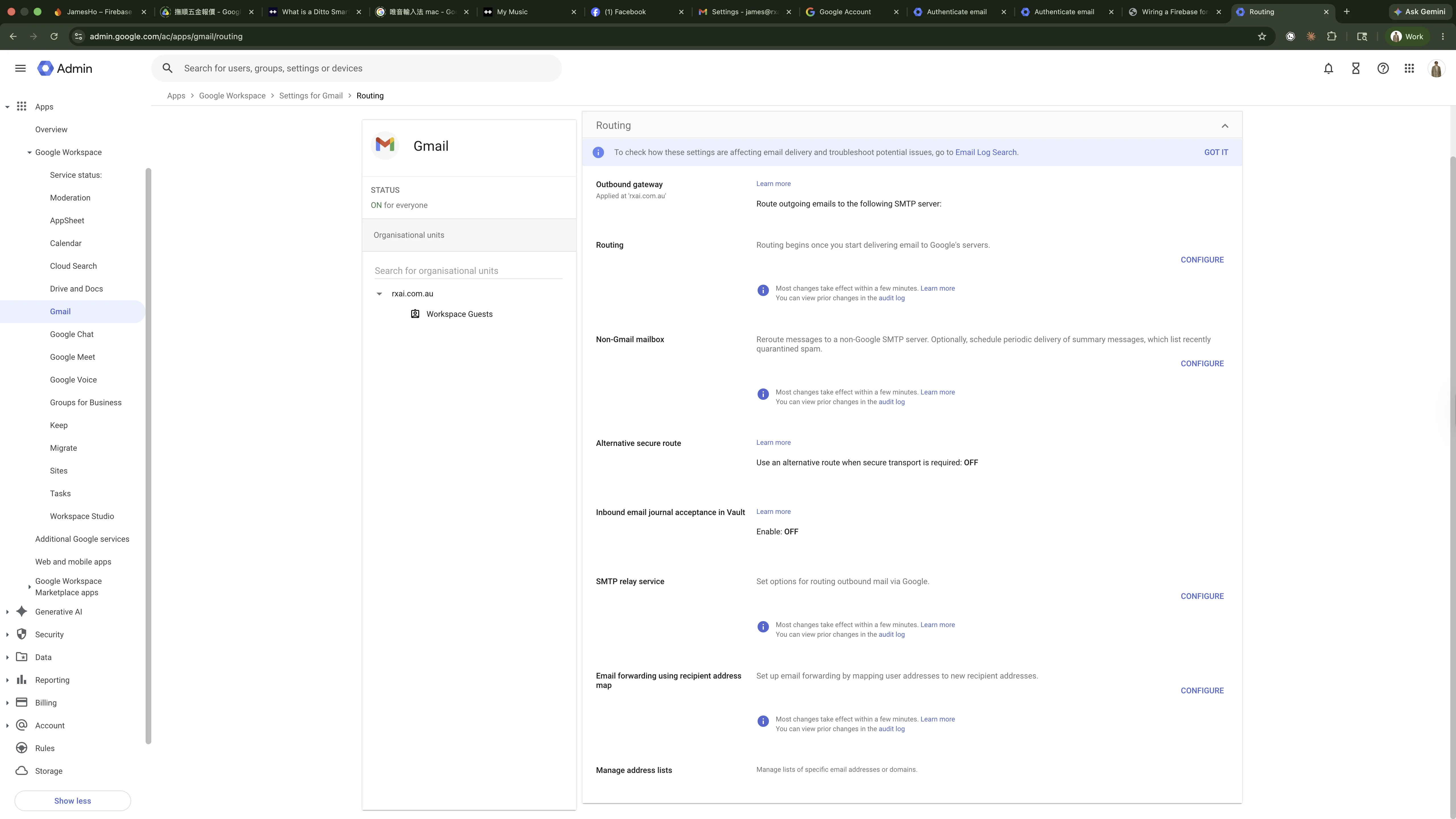
- Description:
Firebase Trigger Email - Allowed senders: Only addresses in my domains
- Authentication: Uncheck "Only accept mail from specified IPs" (Firebase has no fixed IP) and check "Require SMTP Authentication"
- Encryption: Check "Require TLS encryption"
Save the rule. It should show as Enabled in the SMTP relay list.
How Do You Authenticate with an App Password?
The relay authenticates as a real user, so you need an app password from a real Workspace mailbox. Sign in to that mailbox in a clean browser session — not your personal @gmail.com — then:
- Enable 2-Step Verification on the user (required to create app passwords).
- Visit myaccount.google.com/apppasswords.
- App name
firebase-smtp-relay→ Create. - Copy the 16-character password — strip the spaces Google displays between groups of four.
The Spaces Trap
The password Google displays is abcd efgh ijkl mnop. The real password is abcdefghijklmnop — sixteen characters, no spaces. Pasting it with spaces will look correct and silently fail with a 535 BadCredentials error.
How Do You Install the Trigger Email Extension?
From the Firebase Console, open Build → Extensions → Browse, find Trigger Email from Firestore, and click Install. Fill in the configuration as follows:
- Cloud Firestore instance ID:
your-named-db - Email documents collection:
mail - Default FROM address:
RxAI <hello@yourdomain.com> - Default REPLY-TO address:
hello@yourdomain.com - SMTP connection URI:
smtps://user%40yourdomain.com:APP_PASSWORD@smtp-relay.gmail.com:465?name=yourdomain.com - Users collection / Templates collection: leave blank unless you want them
Four things about the SMTP URI are non-negotiable:
smtps://with the trailing s means implicit TLS on port 465. Usesmtp://on port 587 only if your network blocks 465.%40is URL-encoded@in the username.- The password contains no spaces.
- Append
?name=yourdomain.comto declare your domain as the EHLO hostname. Without it, Cloud Functions sends a generic container ID orlocalhostat EHLO and Google closes the connection with a421-4.7.0error before authentication even starts.
Why Do SPF, DKIM and DMARC Matter?
Since February 2024, Google requires all three records for outbound senders. Without any one of them, the SMTP Relay throttles you at the EHLO handshake. You can verify the records from any terminal:
dig +short TXT yourdomain.com | grep spf1
dig +short TXT google._domainkey.yourdomain.com
dig +short TXT _dmarc.yourdomain.com
A minimum-viable set looks like this:
- SPF — must include
_spf.google.comsomewhere in the chain. Example:v=spf1 include:_spf.google.com ~all. If you use an SPF flattening service, make sure Google is in the flattened set. - DKIM — two-step setup: generate the 2048-bit key in Admin Console (Apps → Gmail → Authenticate email), publish the resulting TXT record at
google._domainkey.yourdomain.com, and then click Start authentication. The status must read "Authenticating email" — Google states this can take up to 48 hours to propagate inside their systems, though it is usually much faster. - DMARC — one TXT record at
_dmarc.yourdomain.comwith at minimumv=DMARC1; p=none; rua=mailto:reports@yourdomain.com.p=noneis monitor-only — safe to start, then tighten toquarantineandrejectafter a few weeks of clean reports.
Pro Tip
Publishing the DKIM TXT record is only half the job. If you never click "Start authentication" in the Admin Console, DKIM signing stays off on Google's side even though DNS looks correct. That single missed click is responsible for an enormous share of 421-4.7.0 errors.
What About Group Posting Policy?
If your FROM address is a Google Group, the group's Who can post setting has to allow internal senders. Otherwise the Group bounces the relay's attempt to use its own address — silently. The SMTP relay accepts the message, then the Group quietly drops it, and you only see this in the extension's logs as a delivery error.
From groups.google.com → manage the group → Settings → Permissions → Posting permissions → ensure "Members of the organization" (or "Anyone on the web" if your form is public) is allowed to post.
What Errors Will You Hit, and How Do You Fix Them?
Almost no first-time setup completes without at least one of the following. These are the four we hit, in the order they tend to appear.
1. RESOURCE_ERROR — Eventarc Service Agent Permission Denied
The extension installs Cloud Functions v2, which use Eventarc. On a brand-new project, Google needs to provision an Eventarc service agent and grant it the roles/eventarc.serviceAgent role. Sometimes this lags.
The fix: enable Eventarc, Cloud Functions, Cloud Run Admin, Cloud Build and Artifact Registry APIs, wait 5–10 minutes, then check IAM with "Include Google-provided role grants" enabled. If the agent is missing, grant it manually with gcloud and retry the install.
2. 535-5.7.8 Username and Password Not Accepted
The classic Gmail SMTP auth failure. Five possible causes, in order of frequency:
- App password generated under the wrong Google account (personal Gmail, not the Workspace user named in the URI).
- App password pasted with the four-character spaces Google shows.
- 2-Step Verification not enabled on the Workspace user.
- Workspace admin policy disables app passwords.
@in the URI username not URL-encoded as%40.
The cleanest way to isolate is a 10-line Python script that talks to smtp-relay.gmail.com:465 directly with smtplib.SMTP_SSL and the same credentials. If the script sends successfully, the credentials are fine and the issue is in the extension's URI config.
3. 421-4.7.0 Try Again Later, Closing Connection (EHLO)
Google is closing the connection at the EHLO handshake, before authentication is even attempted. This is connection-level refusal and it has three common causes:
- Auth-failure cooldown. Each 535 increments a security counter. Once you cross the threshold, even a successful login is blocked. The fix is to stop retrying and wait. Counterintuitive but documented.
- Missing DKIM or DMARC. If your records are published but DKIM signing has not been activated in Admin Console, the relay still throttles you. Click Start authentication.
- Generic EHLO hostname. Without
?name=yourdomain.comon the SMTP URI, Cloud Functions identifies itself with a generic container hostname. Append the parameter and redeploy.
4. Edits to dist/index.html Keep Disappearing
If your project has a build step that renders into dist/, editing the built file directly is pointless — the next build wipes it. Edit the source HTML and rebuild. Obvious in hindsight, easy to miss when you are focused on form behaviour.
How Do You Verify Everything Is Wired Correctly?
Run all of these in order before you call it done:
dig +short TXT yourdomain.com | grep spf1
dig +short TXT google._domainkey.yourdomain.com | grep -q "v=DKIM1"
dig +short TXT _dmarc.yourdomain.com | grep -q "v=DMARC1"
Then in the Admin Console:
- DKIM status reads Authenticating email, not "Not authenticating mail"
- SMTP Relay rule shows Enabled
- Group "Who can post" allows internal senders
And in the Firebase Console:
- Trigger Email extension shows Enabled, not "Updating…"
- Extension config points to the named Firestore DB, not
(default) - A submitted
maildocument getsdelivery.state: "SUCCESS"within roughly 30 seconds
When it works, the delivery map looks like this:
delivery.state      = "SUCCESS"
delivery.info.accepted   = ["visitor@example.com"]
delivery.info.response   = "250 2.0.0 OK ..."
What Wastes Time and Should Be Avoided?
A short list of moves that look like progress but make things worse:
- Rotating the app password during a cooldown. Adds another failed-auth event, extends the cooldown.
- Reinstalling the extension to "reset" it. Does not reset anything on Google's side. Costs five minutes.
- Toggling between ports 465 and 587. If credentials are wrong, both fail. If they are right, either works.
- Submitting test entries to "check if it works now". Every test during a cooldown extends the cooldown. Wait an hour after any 421-4.7.0.
- Editing built files. Edit the source.
Why Does This Matter for Your Business?
A working Firebase + Workspace email pipeline is the single cheapest, most reliable way for an Australian SME to capture leads from a public site and respond automatically. No SaaS subscription, no Mailchimp, no Zapier — just Firestore documents and a Workspace user. The setup cost is one engineer-day of careful configuration; the running cost is essentially zero until you exceed Firebase's free-tier write quotas.
If you want help wiring this up for your own site — or you are stuck on a 421-4.7.0 that has not cleared after 24 hours — book a free 30-minute consultation with the RxAI team and we will walk through your specific setup. We have shipped this exact pipeline for healthcare, dental and professional services clients across Sydney and the Central Coast.
Frequently Asked Questions
No. A Google Group is a distribution address, not a mailbox, so it cannot hold SMTP credentials. To send mail that appears FROM a Group address you authenticate against the Workspace SMTP Relay as a real user in the same domain, and the relay lets that user send as any address — including the Group.
It almost always means one of three things: SPF, DKIM or DMARC is missing or not yet active in Workspace; you are in an auth-failure cooldown from earlier bad credentials; or your sender is not declaring a domain at EHLO. Fix the DNS, stop retrying for at least an hour, and append ?name=yourdomain.com to the SMTP connection URI to force the EHLO hostname.
Yes, but you must point the extension at the exact database ID during install, and your client must call getFirestore(app, "your-db-id") — not the default. Writes to the default database will not trigger the extension if it is configured for a named database. This is the single most common cause of "the form submits but no email arrives".
Yes. Since February 2024 Google requires all three for outbound senders. Without them, Workspace will throttle or block your relay at the EHLO handshake before authentication is even attempted. DMARC can stay at p=none for monitoring, but the record must exist and be valid.
Each failed SMTP authentication increments a security counter on the sending account. After a few failures Google triggers a cooldown that blocks even valid attempts. The standard wait is around one hour, but every retry during the cooldown extends it. The fix is counterintuitive: stop testing, fix the root cause, and wait.
Want This Wired Up for Your Business?
RxAI offers a free 30-minute consultation to map a Firebase-based form-to-email pipeline onto your site. No obligation, no sales pitch — just a clear plan and an honest assessment of what it will take.
Book Free Consultation